channel creators
Keep audio from your own uploads
Download the full audio from a video on your own channel with YouTube to WAV Converter and keep a local copy for future projects.
Paste a public video link into YouTube to WAV Converter and download the complete audio as a WAV file for listening or use in your audio and video projects.
Paste a YouTube link to get started
More Audio Tools
AI YouTube to WAV Converter turns public links into WAV for DAWs and video editing. Convert full audio or a section free online—no ads, signup or app needed.
YouTube to WAV Converter takes you from a video link to a complete audio download in three steps.
Copy the link to a public video you own or have permission to use, then paste it into YouTube to WAV Converter.
Start the conversion in YouTube to WAV Converter. Wait while the full audio from the linked video is prepared as WAV.
Once conversion finishes, download the WAV file to your device. Open the downloaded file in a compatible player or editor.
Get the audio from a public video as a separate file for your next project.
Use YouTube to WAV Converter directly with a public YouTube URL. There is no need to download an MP4 first and upload it for conversion.
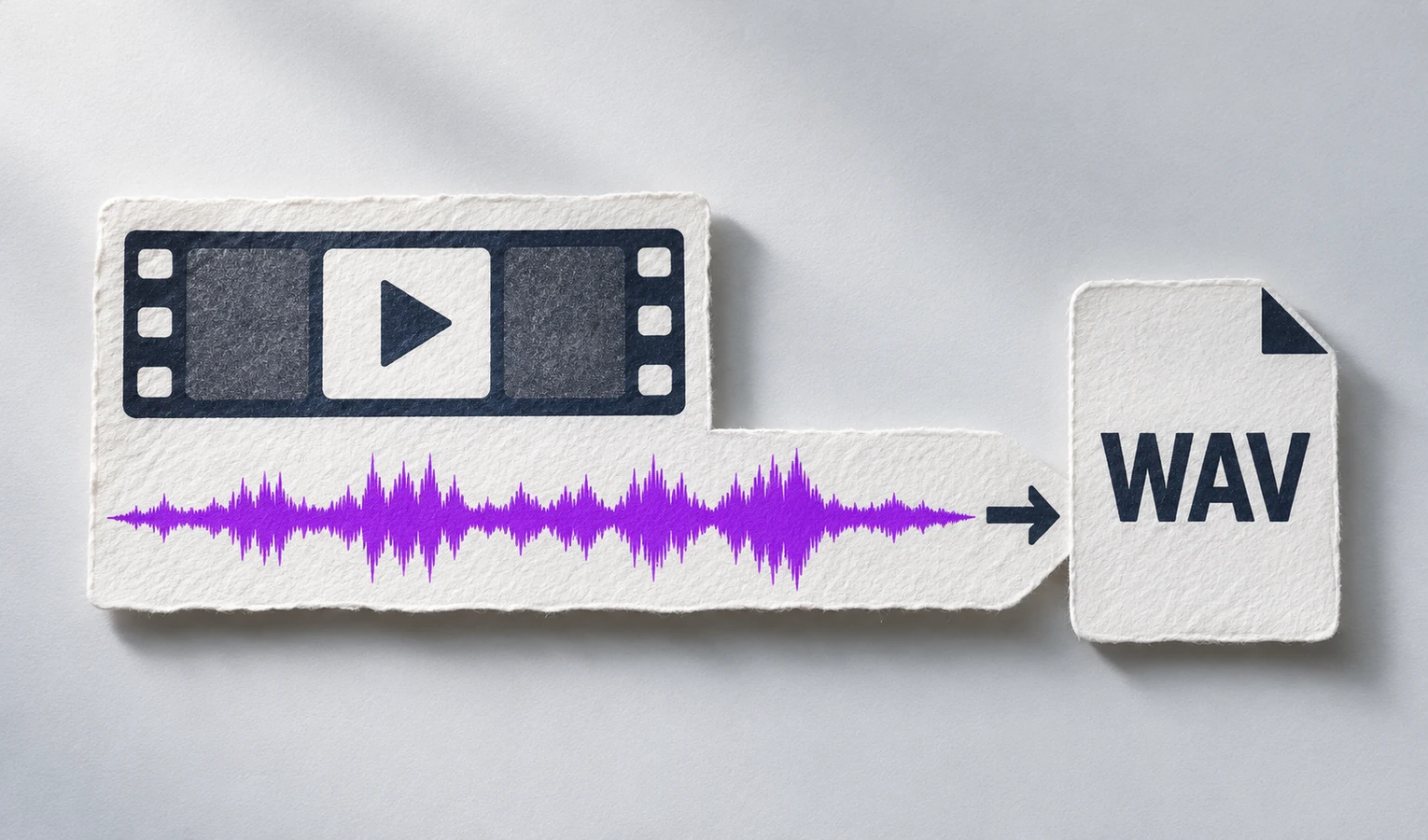
YouTube to WAV Converter converts the complete audio track, from the beginning of the video to the end, into one WAV file.
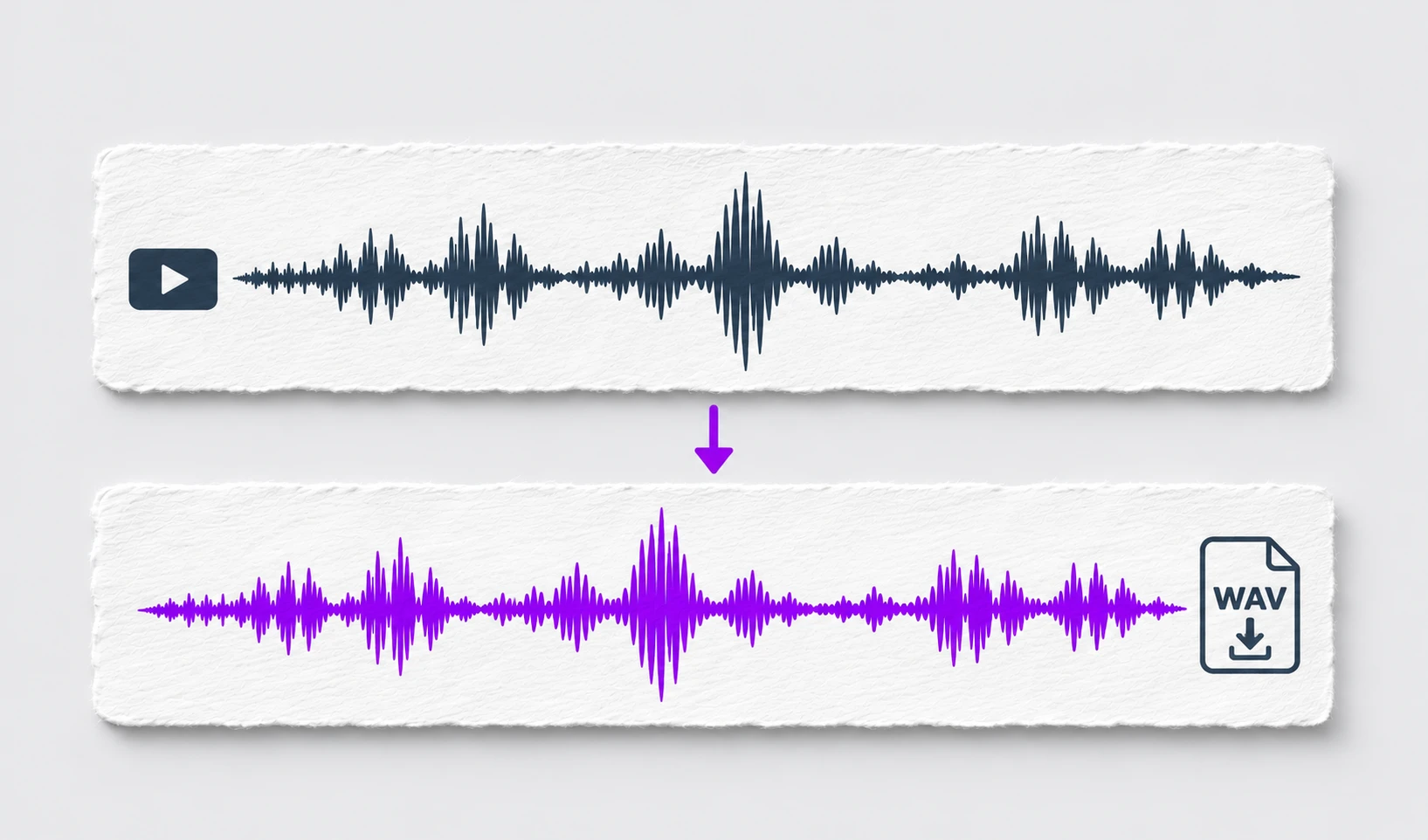
Download your file from YouTube to WAV Converter, then open it in a WAV-compatible audio or video editor for any cutting or other edits.
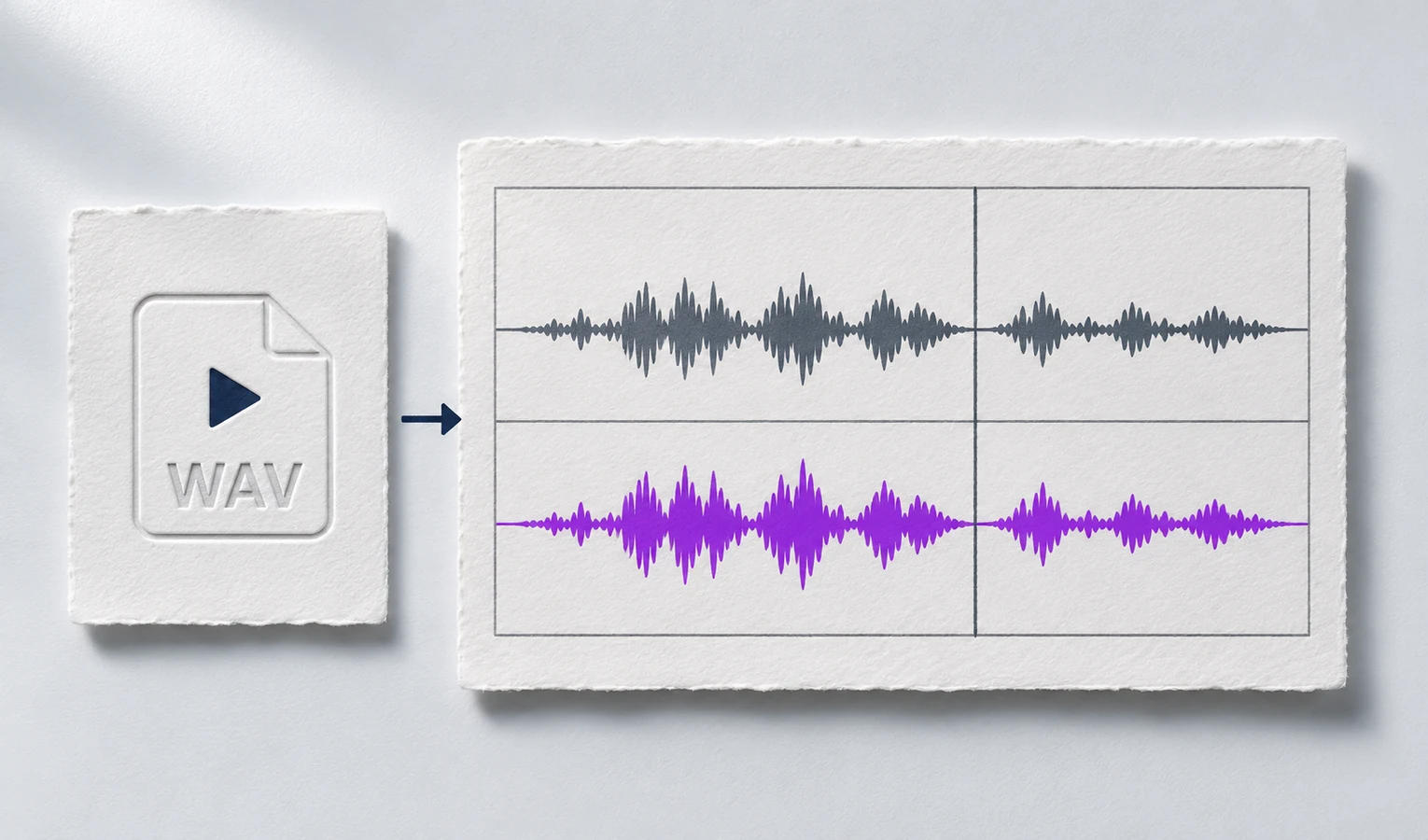
Keep audio from your own uploads
Download the full audio from a video on your own channel with YouTube to WAV Converter and keep a local copy for future projects.
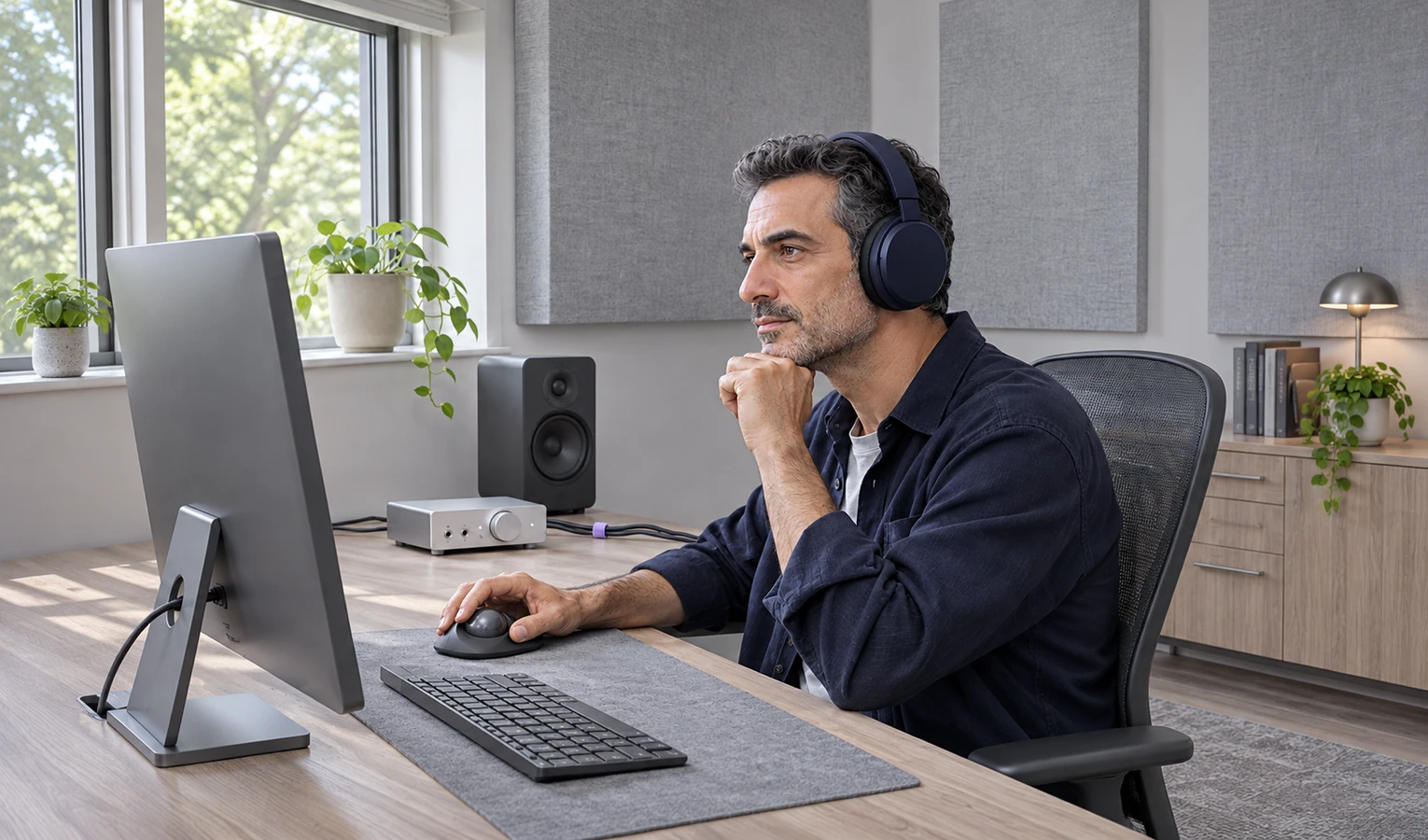
Bring a video interview into an audio project
Use YouTube to WAV Converter for an interview you have permission to reuse. Download the complete recording, then edit it in your podcast software.

Make your lesson available for listening
Turn your own public lesson into a complete audio file with YouTube to WAV Converter for use in your teaching materials.

Add source audio to a new timeline
Download authorized audio with YouTube to WAV Converter, then import the WAV file into your video editor and arrange it alongside your footage.

Listen to a complete performance
Use YouTube to WAV Converter to download a performance you have permission to use, then listen to the WAV file in a compatible player.

Rachel T.
Channel creator
I used the AI YouTube to WAV Converter to reuse my old intro in a new trailer. The WAV lined up with my new footage.

Marco L.
Podcast editor
I wanted the guest’s whole answer. After listening back, I moved the cut so the last sentence stayed in.

Aisha K.
Teacher
I converted the explanation from my own lesson. Now my class can listen to that one example again.

Jordan M.
Video editor
I tried the interview audio under a different shot. WAV worked in the editor I was already using.

Lucía V.
Music learner
I converted one phrase from a clip I had permission to use. It gave me a short passage to practice by ear.

Kenji S.
Editing student
I checked the start and end before converting. The extra second at the start kept the first word intact.
Paste a public video URL into YouTube to WAV Converter, start the conversion, and download the WAV when it is ready. The file contains the complete audio from that video.
No. YouTube to WAV Converter starts with the video link. You do not need to download and upload an MP4 file first.
This page converts the full audio. To keep a shorter section, download the complete WAV and cut it in a separate audio editor.
No. Changing the file format does not restore detail missing from the source audio. The downloaded file still depends on the quality of the original recording.
WAV files commonly store uncompressed audio, while MP3 uses compression to reduce size. The final size also depends on duration, sample rate, bit depth, and channel count.
Choose WAV when your editing project needs that format. MP3 is often more convenient when a smaller file matters. This page outputs WAV.
Audacity supports WAV import. In other audio or video editors, check the supported formats, then import the downloaded file into your project.
First check that the URL opens the intended video and that the video is publicly accessible. If YouTube to WAV Converter reports an error, follow the message shown before trying again.
Check your browser’s download list or the folder selected for downloads. The location depends on your browser and device settings.
No. WAV is an audio file. This download contains the video’s sound, without the video picture.